How to Reset UHR Payslip Password
Forgetting your UHR payslip password can be inconvenient, especially when you need to check your latest salary statement or download a payslip. You generally don’t need to create a new account just because you have forgotten your password.
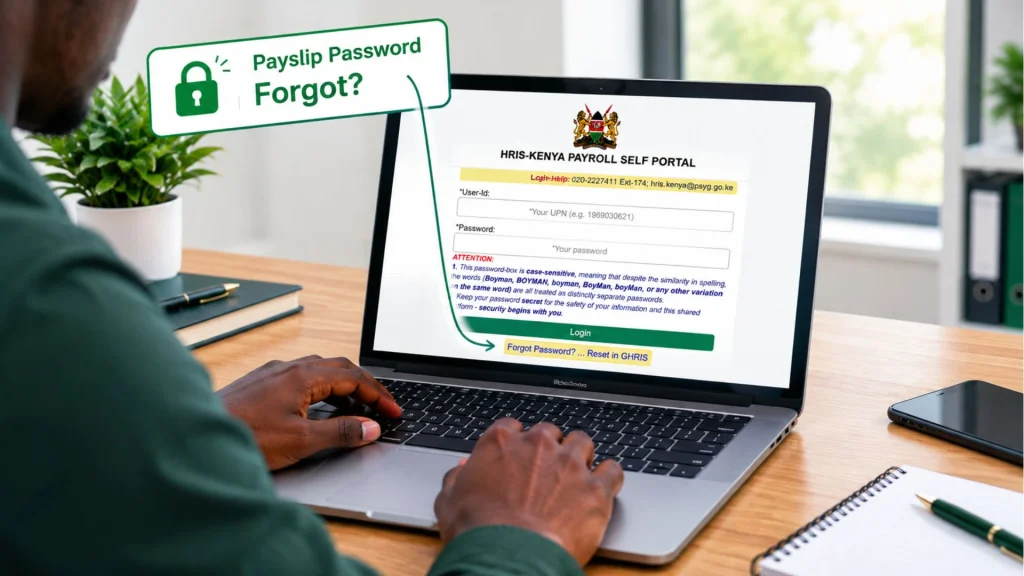
The UHR payslip portal provides a password recovery option and currently directs users to GHRIS to reset a forgotten password.
In this guide, we’ll explain how to reset your UHR payslip password, what information you may need, and what to do if the password-reset process does not work.
Why Do You Need to Reset Your UHR Payslip Password?
There are several reasons you may need to reset your password:
How to Reset UHR Payslip Password (Step-by-step Guide)
If you have forgotten your UHR payslip password, Don’t worry. Follow the steps to recover your password.
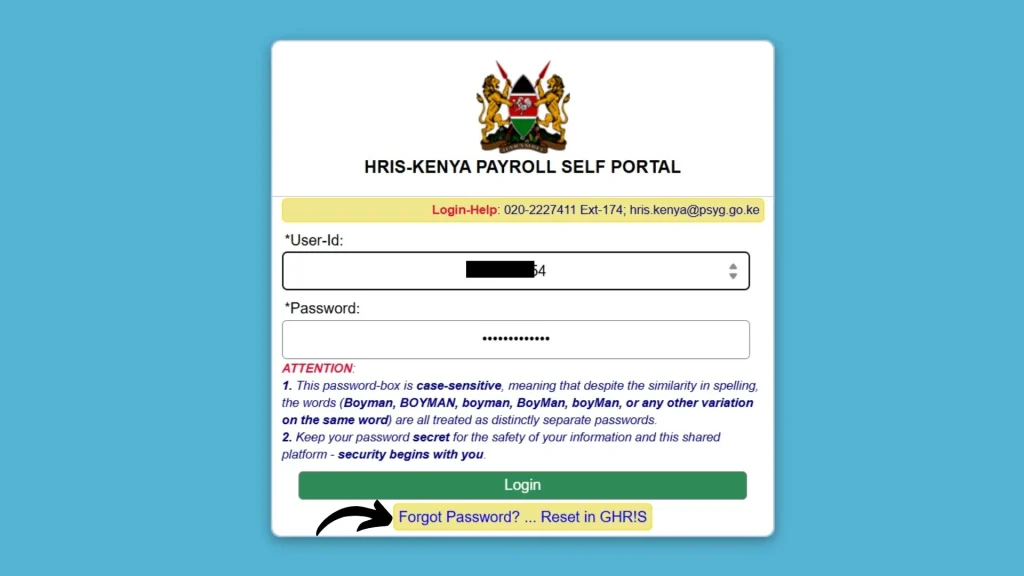
Step 1: Open the UHR Payroll Self Portal
Start by visiting the official UHR Portal: uhr.kenya.go.ke/ippd/auth/login.php.
Step 2: Select “Forgot Password”
If you cannot remember your password, click on the Forgot Password button located under the login button.
Step 3: Fill in your details
The form currently asks for information including:
Enter your information carefully and make sure it matches the details associated with your government employee record.
Step 4: Follow the Password Reset Instructions
Follow the GHRIS instructions to verify your identity and complete the password reset. If the system asks you to verify an OTP or other security information, enter it as instructed.
Step 5: Create New Password
Then create your new password according to the page requirements.
Step 6: Return to the UHR Portal
After successfully resetting your password, return to the UHR Payroll Self Portal.
Enter:
Then try logging in again.
Tips to Create a Strong UHR Password
Once you regain access, take a few simple steps to protect your account. Your password should:
What If You Cannot Reset Your UHR Password?
Sometimes the password reset process cannot work immediately. This does not necessarily mean that your account is permanently blocked.
Here are some things you can check.
Check Your Personal Information
If the reset form doesn’t accept your details, carefully compare what you entered with your official records.
Do not randomly change information to try to make the form work. If your details have changed or your records show a discrepancy, you may need help from your HR department.
Make Sure You Are Using the Correct Portal
One common mistake is confusing different government HR and payroll systems.
The UHR portal currently links its forgotten-password process to GHRIS, while GHRIS has its own login and password-reset pages.
If you are unsure which system your account uses, start with the portal where you normally access your payslip and follow the recovery option displayed there.
Check Your Internet Connection
A weak or unstable internet connection can sometimes make government websites appear unresponsive.
If the page does not load properly:
Try a Different Browser
If the reset page is not working correctly, try a modern browser such as Chrome, Edge, Firefox, or Safari.
You can also clear your browser cache and cookies before trying again.
Can You Reset the UHR Password Without Creating a New Account?
Yes, if you have forgotten your existing password, you should use the password-reset process rather than registering another account.
The UHR portal provides a Forgot Password option, and the current portal directs users to GHRIS for password recovery.
Creating another account when you already have a payroll record can create additional confusion, so use the official recovery process first.
Conclusion
Forgetting your UHR payslip password does not mean you have lost access to your payroll information permanently. If you cannot remember your UHR payslip login password, use the Forgot Password option on the official UHR Portal and follow the GHRIS recovery process.
The most important thing is to use the official recovery process and enter your personal information carefully. Once you regain access, return to the portal and log in using your User ID/UPN and new password. Keep your new password private and save it somewhere secure.